Set up all tokens
Set up cost basis gives every token without a cost basis opening balance its starting point in one go, instead of one token at a time. Tokens that already have an opening balance keep theirs.
Open it in either of two ways:
- Select Reconcile in the sidebar's icon rail, then Cost Basis, then Set up all tokens at the top right.
- From the setup checklist on the entity's home page, select Set up cost basis on the cost basis step. Back to setup then returns you to the checklist instead of to Cost Basis.
The list holds every token the entity has a token card for, except stablecoins and tokens marked as spam. A token only leaves it once it has an opening balance.
Choose how to start
The first step, How do you want to start?, applies one method to every token on the list.
| Choice | What it creates |
|---|---|
| Start from zero | An AVCO opening balance of zero quantity and zero cost for each token. Use it when the entity held none of these tokens before the opening date. |
| One cost per token | An AVCO opening balance per token. The balance is filled in for you and you enter the total cost. |
| Import lots | A FIFO, LIFO, HIFO or Spec ID opening balance per token, with its opening lots read from one CSV. |
Below the choices:
| Field | Notes |
|---|---|
| Opening date | Defaults to the entity's opening balance date (entity settings, Opening balances), or 1 January of the current year if none is set. Days after today (UTC) are disabled. Postings before it are left out. |
| Method | Import lots only. FIFO (first in, first out), LIFO (last in, first out), HIFO (highest cost first) or Spec ID (pick lots per sale). LIFO is disabled for an entity that reports under IAS 38. |
| Period | Monthly or Yearly. How period summaries are grouped. |
Select Next.
Check each token
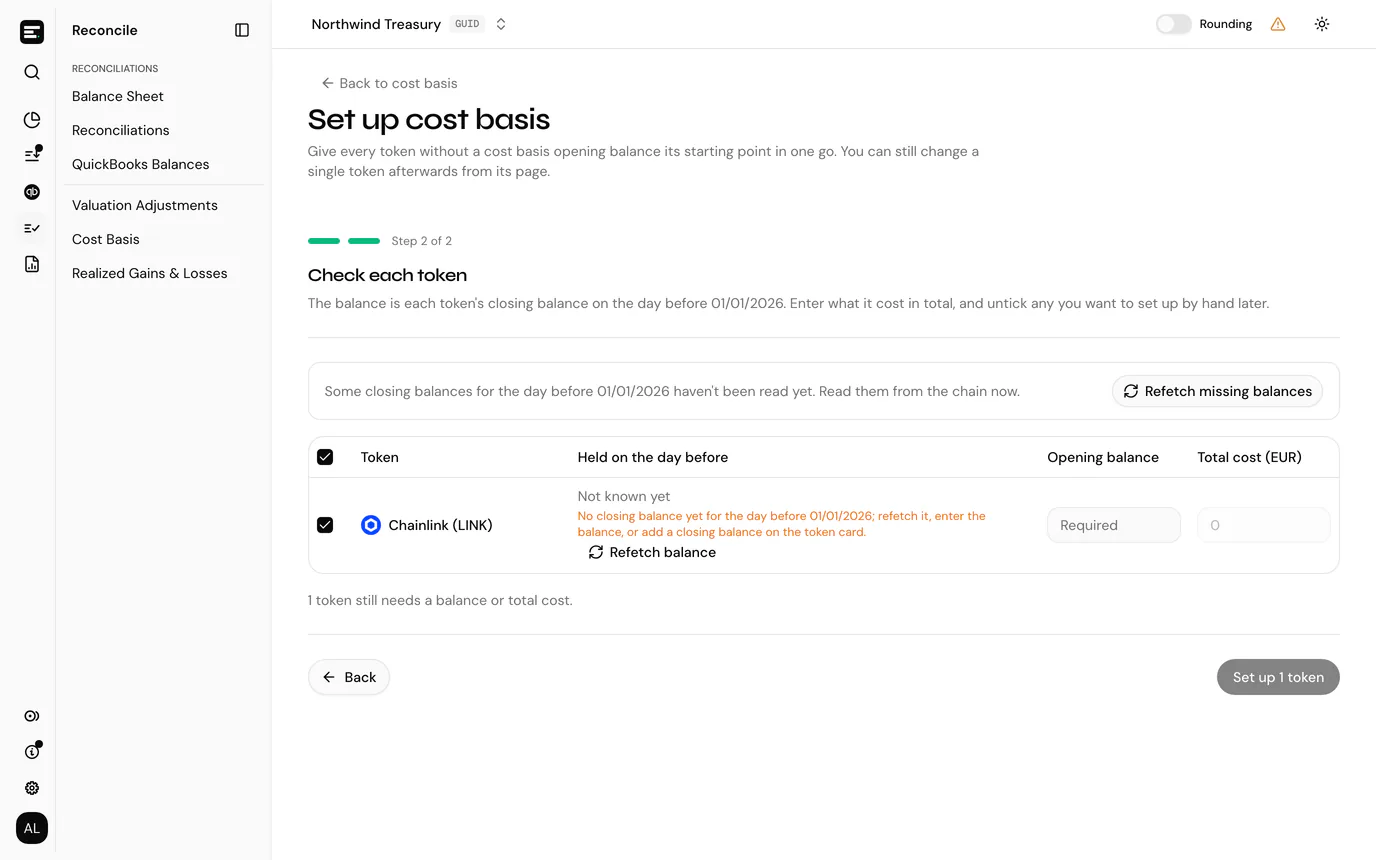
The second step, Check each token, lists the tokens with a checkbox each. Untick any you want to set up by hand later from the token's own page.
Held on the day before is the sum of the token's token card closing balances on the day before the opening date. It warns you when:
- no token card has a closing balance for that day yet (the figure reads Not known yet),
- some cards have none, so the total leaves them out,
- under Start from zero, the token was held, so selling it reports the full proceeds as gain.
Refetch balance on a token, or Refetch missing balances above the list, reads the missing closing balances from the chain where the chain supports it. Exchange cards and cards on other chains need a manual balance on the token card instead (see when token cards are missing a balance).
What else the step asks for depends on your choice.
One cost per token
Each token has two inputs:
| Column | Notes |
|---|---|
| Opening balance | Filled in from Held on the day before. You can type over it. Required. |
| Total cost | What that balance cost in total, in your entity currency. Required when the balance is above zero, and disabled when it is zero. |
A line under the list says how many tokens still need a balance or total cost.
Import lots
- Select Upload lots CSV. The Upload opening lots dialog opens, with Download a CSV template to start from.
- Choose the file and match its columns, as for uploading lots for one token. The file also needs a Token column holding each lot's token symbol (headers such as
token,symbolorassetare matched for you). - Select Add n lots.
The Lots column then shows each token's lot count and total quantity, and warns when there are no lots for a held balance or when the lots differ from the held balance. A token with no lots in the file starts with none.
The CSV names tokens by symbol, so:
- Symbols in the file that match no token on the list are named above it and left out. They may already be set up, be stablecoins, or have no token card.
- Tokens that share a symbol cannot be told apart. They read Shares its symbol with another token, their checkbox is disabled, and they are not set up. Set each one up from its token's page.
Replace lots CSV swaps the file for another.
Create the opening balances
Select Set up n tokens. Back returns to the first step.
Lot rows with no matching account, a missing date or a date after the opening date, or an invalid quantity or cost, are left out, and the confirmation says how many. If some tokens fail, they stay on the list with the reason, so you can fix them and try again. The rest are set up.
When every token succeeds you return to Cost Basis, or to the setup checklist if you came from there.
Who can use it
Setting up needs write access. Viewers can open the page but cannot pick a method. See roles and permissions.
Next
Opening balances covers a single token's opening balance, and changing one after it is created.